How Do You Install the SASEUL Miner on Windows? 7 Steps in 27 Screenshots, Plus Fixes for When You Get Stuck

How do you install the SASEUL miner on Windows?
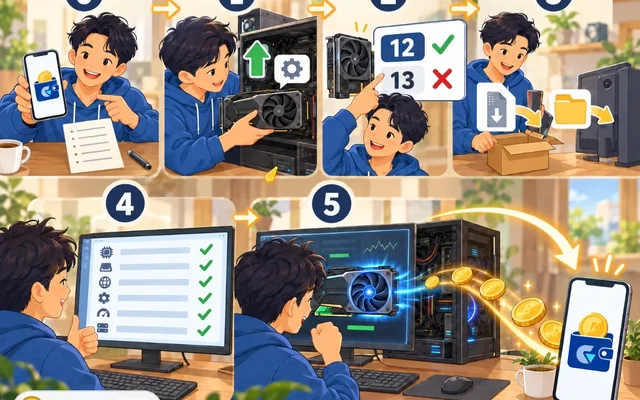
Download and check, install two programs, unzip, add your address, start
1-2 Download, check
Get it from the pool site, check your PC
3-4 Driver, CUDA
Two NVIDIA programs
5-6 Unzip, address
Unzip, then get an address in Guardee
7 Start
Enter the address, Start mining
If your Windows PC has an NVIDIA graphics card, you can do this. I wrote down every single click so that even people who don't use computers much can follow along.
I took the screenshots below on October 3, 2026, while going through the steps myself on a Windows 11 PC with one NVIDIA graphics card. The miner version is 0.9.2.18. If the version changes, some of the text on screen may look a little different.
You get the miner from saseulmine.com, a pool site run by the community. The site itself says it's an "unofficial service not affiliated with the SASEUL project." It isn't an official tool from the SASEUL project. If you're not sure what a pool is, see What is a mining pool.
Before you start, check three things you need and two rules
You need three things.
- A Windows 10 or 11 computer
- An NVIDIA graphics card. Step 2 shows you how to check
- A SASEUL address to receive coins. If you don't have one, you'll make it in step 6
Set aside 30 minutes to an hour. The longest part is downloading the 3.6 GB CUDA file.
And two rules.
- Only download the miner from saseulmine.com. You can't tell whether a miner from anywhere else is the real thing
- Never tell anyone the 16 words of your wallet. The miner only needs your address. If a screen asks you to type the 16 words, stop and don't share them with anyone
The orange boxes in the screenshots show where to click. If they're numbered, click them in that order.
These screenshots come from a Korean-language Windows PC, so the words on screen are in Korean. The buttons sit in the same places on English Windows, and I've written the English button names in the steps.
When you see a keyboard picture in this post, press those keys together. For example, R means hold down the Windows key and press R. The Windows key is at the bottom left of the keyboard, between Ctrl and Alt.
1. Get the Windowed version from Download on the pool site
- Open a web browser (Chrome or Edge)
- Type
saseulmine.cominto the address bar at the top and press Enter - Click "Download" in the menu at the top
- In the Windows box, click the blue "Windowed" (140 MB) button
Command line is a version you only use by typing into a black command window. If this is your first time, get Windowed.

Clicking the button opens a Google Drive page. It's fine if it says it couldn't preview the file. Click the blue "Download" button.

The next screen says Google Drive can't scan the file for viruses. That only means the file is too big (140 MB) for Google to check. Click "Download anyway." You can check that the file is the real one yourself with the method below.

When it's done, the file name shows up at the top right of the browser. Don't open it yet. You'll unzip it in step 5. Downloaded files usually go into your "Downloads" folder.

Want to check that the file is the real one?
You can do this check or skip it. If you want to do it, here's how.
- Open File Explorer (the yellow folder icon) and click "Downloads" on the left
- Click once in the address bar at the top of the window, type
cmdand press Enter. A black window opens - In the black window, type
certutil -hashfile saseul-miner-gui-win64-v0.9.2.18.zip SHA256and press Enter - Compare the long string it shows with the value "right under" the Windowed button on the pool site
If every character matches, it's the same file the site uploaded. The site says not to compare it with a value inside the zip file.
2. First, check your Windows version and graphics card name
You'll need both of these to pick the driver.
See your Windows version
- Press R. A small "Run" box appears at the bottom left
- Type
winverand press Enter - The window tells you if it's Windows 10 or 11. Click OK to close it

See your graphics card name
- Press CtrlShiftEsc together. Task Manager opens
- Click "Performance" (the graph icon) on the left. On Windows 10, click "More details" at the bottom of the window first, then the "Performance" tab at the top
- Click "GPU" in the list and the card name shows up at the top right
The name has to start with NVIDIA for this miner to work. If you see two GPUs, look at the one that starts with NVIDIA.

3. Get the latest driver from NVIDIA's site and install it with Express
The driver is the basic program that makes the graphics card work.
- In your browser, open the NVIDIA driver page
- Pick the graphics card and Windows version you saw in step 2 and search
- On the page that comes up, click the green "Download" button

Double-click the downloaded file to run it. Leave the first screen as it is and click "AGREE AND CONTINUE." The default choice installs the driver together with the NVIDIA App. Picking just "NVIDIA Graphics Driver" below it is fine for mining too.

Leave the install option on "Express (Recommended)" and click "NEXT." The screen may go black or flicker for a moment during the install. Nothing's broken.

When it says "NVIDIA Installer has finished," click "CLOSE." Then restart the computer once. The pool site also says to restart after installing the driver. Click the Start button, click the power icon, and choose "Restart."

4. Install CUDA separately and just click past the two warnings
CUDA is an NVIDIA program that lets the graphics card do calculating jobs. It doesn't come with the miner, so you install it separately. The pool site says to get version 12 or 13, whichever fits your driver. As I noted in the setup post, GTX 10 series cards only work with version 12.
- Open the CUDA Toolkit download page
- Click the green buttons one after another: "Windows," "x86_64," your Windows version ("10" or "11"), then "exe (local)"
- Click "Download (3.6 GB)" that appears below. It takes a while

Double-click the downloaded file to run it. If a small window first asks where to extract files, just click OK. Wait a bit and the installer appears. When it asks you to agree, agree and move on. Then leave the install option on "Express (Recommended)" and click "NEXT."

Partway through, a warning in English says Visual Studio couldn't be found. It's about a feature for people who make programs. Click the box below to check it and click "NEXT."

Next comes a list that says "Nsight … Not Installed." It means the same kind of developer feature wasn't installed. Click "NEXT" to move on. The PC I used got past both warnings and still passed every check in the miner (the System tab in step 7).

When it says "NVIDIA Installer has finished" and every component says "Installed," click "CLOSE."

Check that both programs installed properly
- Press R, type
cmdand press Enter. A black window opens - Type
nvidia-smiand press Enter. It shows your graphics card name and driver number - Type
nvcc --versionand press Enter. It shows the CUDA version
If typing nvcc gives you "'nvcc' is not recognized as an internal or external command, operable program or batch file," close the black window, open a new one and try again. If it still doesn't show, you can check again on the System tab in step 7.

5. Unzip the zip first, then get past the blue warning with More info
The miner has no installer. Once you unzip it, it runs right from that folder. The pool site says it doesn't write anything outside the folder.
- Open the "Downloads" folder in File Explorer
- Right-click
saseul-miner-gui-win64-v0.9.2.18.zip - Click "Extract All..."
If you double-click the zip to open it and click miner.exe inside, the notice below pops up. Here too, just click "Extract all." Running it straight from inside the zip may not work properly.

Leave the destination as it is and click "Extract" at the bottom. A folder with the same name appears inside your Downloads folder.

When you open the new folder, there may be another folder with the same name inside. Go into it and double-click "miner.exe."
The first time you run it, a blue box saying "Windows protected your PC" may pop up. It's a warning Windows shows for programs it doesn't know well yet. Near the top of the blue box, right under the message, click the underlined "More info."

Check that the app name is miner.exe and click "Run anyway." On the PC I used, it ran without turning off Windows Security.

6. Make an address to receive coins in Guardee, and write the 16 words on paper
If you already have a SASEUL address, go to step 7. If not, make one in the web wallet Guardee.
- Open
guardee.ioin your browser - Click the start button ("시작하기" on the Korean screen), then click "새 지갑 만들기" (Create new wallet) on the next screen
- Right after it's made, it shows 16 words (your recovery words). Write them on paper in order and keep it somewhere safe
These 16 words are the key to your wallet. If you lose them, nobody can bring the wallet back for you. Don't take a photo and keep it on your phone, and don't send them to anyone.

The screen says the wallet is stored "only on this device." So to use it on another computer or phone, you have to bring it back with the 16 words. How to do that is in Restoring a Guardee wallet.
On the wallet screen, the long string of letters and numbers at the bottom of the blue card is your address. Click the copy icon next to it and "복사 완료!" (Copied!) appears at the top. Your address is fine for others to know.

7. Paste the address, click Start mining, and it begins
When you open miner.exe, the Mine tab shows first. The status still says Stopped.
- Click once in the box under "Paste the address you want to be paid to"
- Right-click and choose "Paste," or press CtrlV. The address you copied in step 6 goes in
- Click the orange "OK" to the right of the box
- Click the orange "Start mining"

When the status changes to Mining and the HASHRATE (mining speed) and ACCEPTED (work the pool accepted) numbers go up, you're done.
At first it's set to use only 25% of the graphics card. So you can keep using the computer while it mines. You can change the share with the GPU share bar on the right. The bar is locked while mining, so click "Stop mining," move it, then click "Start mining" again. Start at 25% and raise it slowly while you keep an eye on the noise and heat.

Even if you click the window's X, mining keeps going. It stays as a small icon at the bottom right of the screen (next to the clock). If you don't see the icon, click the up arrow (^) next to it.
- To pause: click "Stop mining" on the Mine tab
- To shut the program down completely: right-click the icon at the bottom right and choose "Quit"
The Pool tab shows the whole pool's speed, how many machines are mining, and how many pages of the record book (blocks) the pool has found.

The System tab checks whether you have everything mining needs. If it's all there, you'll see "all present" and "Ready." If mining doesn't seem to be working, look at this tab first.

Rewards are split by how much work you did. According to the pool site, 80% goes to the miner, 10% to running the pool, and 10% to the person who referred you. Mining uses electricity and wears out your hardware. Get a rough idea of a month's power bill first with the electricity cost post.
When you get stuck, here's what I actually ran into and how to fix it
I wrote down what I actually ran into while installing (from the Google Drive warning to the white screen) along with problems from the pool site's questions list.
Can't find the file you downloaded? Press CtrlJ in your browser
In both Chrome and Edge, CtrlJ opens the list of downloaded files. Hover over the file name and a folder icon appears next to it. Click it and the place where the file is opens. It's usually the "Downloads" folder.
Google Drive says it can't scan for viruses? That's because the file is big
It's a notice that Google couldn't scan a 140 MB file. Click "Download anyway" and it downloads. If you're worried, do the "check that the file is the real one" part of step 1.
Visual Studio or Nsight warnings during the CUDA install? Check the box and move on
Both just say a feature for people who make programs isn't there. For the Visual Studio warning, check the box and click NEXT. For the Nsight list, click NEXT. The PC I used got past them this way and the System tab still said Ready.
No Run button on the blue "Windows protected your PC" box? Click More info first
The first box only has "Don't run." Click the small "More info" text near the top and the run button appears (the pictures in step 5).
Did your antivirus delete miner.exe? Check the downloaded file first
Antivirus programs sometimes block programs they haven't seen before. The pool site's questions list says to restore the file and add the folder as an exception. Once it's an exception, the antivirus stops scanning that folder. So only do this after checking it's the site's file with the method in step 1.
Miner window stays blank white? Run it with graphics acceleration turned off
This happened to me while installing. It went like this.
- I double-clicked miner.exe, but no window opened
- The miner icon did show up in the tray at the bottom right (next to the clock). Clicking it did nothing for a while
- Then a white window with no text at all popped up, stuck right above the tray
- Only after a long time did words like Open and Quit show up in that window. But clicking them did nothing

The miner window is drawn by a Windows display component (Microsoft Edge WebView2). When this component draws the screen with the graphics card and clashes with the driver, the window can come out white like this. Once I made it draw without the graphics card, it was fixed right away. So the cause looks like that clash.
It's tempting to reinstall this component, but it only said it was already installed and nothing changed.

Here's how I fixed it. Turning off graphics acceleration only affects how the window is drawn, separate from the mining calculations. That said, I didn't measure and compare the speed.
- Open the folder with miner.exe in File Explorer
- Click once in the address bar at the top of the window, type
powershelland press Enter. A blue (or black) window opens in that folder - Copy the three lines below, paste them into that window and press Enter. To paste, just right-click inside the window. If a box asks about pasting multiple lines, click to paste anyway. These commands close the miner if it's running, remove the "blocked" mark that gets attached to files downloaded from the internet, and start it again
Stop-Process -Name miner -ErrorAction SilentlyContinue
Get-ChildItem -Recurse | Unblock-File
.\miner.exe
- If it's still white, paste the three lines below into the same window and press Enter. These turn off graphics acceleration and start it. This setting only applies when you start it from this window
Stop-Process -Name miner -ErrorAction SilentlyContinue
$env:WEBVIEW2_ADDITIONAL_BROWSER_ARGUMENTS="--disable-gpu"
.\miner.exe
- If number 4 worked, make a file that starts it this way every time. Paste the one line below into the same window and press Enter, and
run-miner.batappears in the folder
Set-Content -Encoding ascii -Path ".\run-miner.bat" -Value "@echo off`r`ncd /d %~dp0`r`nset WEBVIEW2_ADDITIONAL_BROWSER_ARGUMENTS=--disable-gpu`r`nstart """" miner.exe"
From now on, double-click "run-miner.bat" instead of miner.exe. If you want it on the desktop, right-click run-miner.bat and choose "Show more options," then "Send to," then "Desktop (create shortcut)." On Windows 10, "Send to" is right there without "Show more options."
Nothing happens when you double-click miner.exe? Check which version you got and WebView2
This one is from the pool site's questions list. If you downloaded the Command line version, double-clicking it won't open anything. Go back to step 1 and get the Windowed version. If it's the Windowed version and it still won't open, the site says to install Microsoft Edge WebView2. Windows 10 and 11 usually already have it.
Installed CUDA but it says it's missing? It may be installed somewhere else
The pool site explains this happens when CUDA came installed with another program and isn't where the miner looks. The System tab shows the folders the miner searched and the ones it found. Try reinstalling CUDA from NVIDIA's site as in step 4. GTX 10 series cards don't work with version 13, so you need version 12.
Computer gets slow while mining? Lower the graphics card share
By default it only uses 25% of the graphics card and steps aside often, so you can usually keep using the computer. If it's still slow, lower the GPU share bar on the Mine tab. The bar is locked while mining, so click "Stop mining" first. If the screen keeps stuttering, lower the Longest single screen freeze bar below it. The screen freezes less and mining gets a bit slower. The site says you can raise it to 100% on a computer you're not using.
Rewards not showing up right away? They're paid once a day
According to the pool site, it sends payments once a day for the work accepted under your address. If it's under the minimum amount, it adds it to the next payment so it doesn't get eaten by fees. If you have several computers, put the same address in all of them and it all goes to one place.
Says "CUDA or NVRTC is missing"? Look at what's missing on the System tab first
The System tab marks the missing items and tells you where to get them. How to pick a CUDA version and fixes for each symptom are in the CUDA error post. The same question is in the pool site's Questions list too. If it's not there, the site says you can ask on its Telegram.
Sources
- SASEUL Mining Pool · Download · Set it up · Questions · checked 2026-10-03 (Windowed 140 MB, SHA-256 check, 6 steps, payout split, antivirus question, notice that it's an unofficial pool)
- Guardee wallet · screens checked 2026-10-03
- NVIDIA driver download · install screens checked 2026-10-03 (617.14)
- NVIDIA CUDA Toolkit download · install screens checked 2026-10-03 (13.4.2, 3.6 GB)
This is an install guide, not investment advice. I hold SL. I took the install screenshots on October 3, 2026, while following the steps on a Windows 11 PC. I opened the pool site and checked its instructions and numbers myself the same day.