SASEUL pool miner stopped overnight? Check sleep, Windows Update restarts, and auto-start first

SASEUL mining stopped overnight?
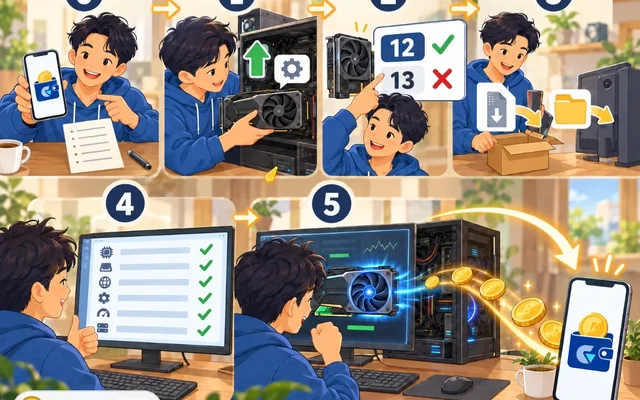
Check in order: did the PC sleep, did it restart, did the miner open again
1 Sleep
Set the sleep time to Never
2 Updates
Active hours and scheduled restart
3 Auto-start
Shortcut in the Startup folder
4 Power cut
Check your manual for auto power-on
If the SASEUL mining you left running overnight has stopped by morning, check three things on the Windows side before the SASEUL coin miner itself. Did the computer fall asleep, did it restart for an update, and did the miner fail to open after the restart?
One thing surprised me. Windows tries to restart at times when nobody is using the computer (Microsoft's Windows Update FAQ). On a PC that only mines overnight, night is exactly that time.
The case where the miner shuts itself off because it can't get answers from the pool is a separate problem. That's in the post on when the miner stops by itself. This post only covers Windows settings. What SASEUL is, is on the SASEUL basics page.
When the computer sleeps, mining stops too, so set sleep to Never
It only mines while the computer is on. Once it goes into sleep (a state where the computer naps for a while), it stops (see the setup post).
On Windows 11, change it like this (Microsoft's "Power settings in Windows 11" doc).
- Press the Start button and click "Settings"
- Click "System" → "Power & battery"
- Open "Screen, sleep, & hibernate timeouts"
- Under "Make my device sleep after," set the value for when it's plugged in to "Never"
You can leave the screen-off setting as is. In the same doc, turning off the screen and sleep are separate settings. If only the screen turns off, the computer is still awake.
Microsoft has recently made this default shorter. According to the table in the same doc, even a plugged-in PC is set to sleep after 15 or 5 minutes. On a new PC, it's worth opening this once.
Laptops fall asleep when you close the lid. You can change that in Control Panel → "System and Security" → "Power Options" → "Choose what the power buttons do" (Microsoft's "Shut down, sleep, or hibernate your PC" doc). I have no records of mining on a laptop, so I don't know how laptop mining goes.
Windows 10 uses different menu names. According to the Windows 10 instructions in the same Microsoft doc, you change it in Start → "Settings" → "System" → "Power & sleep."
Update restarts happen outside your active hours, and if you mine at night, that's the night
Windows restarts the computer to finish updates. If you tell it your active hours (the hours you usually use the computer), it won't restart during them (Microsoft's "Keep your PC up to date with active hours").
On Windows 11, set it in Start → "Settings" → "Windows Update" → "Advanced options" → "Active hours." On Windows 10 it's "Settings" → "Update & Security" → "Windows Update" → "Change active hours."
For a mining PC, this setting alone isn't enough. If you mine all night, Windows sees the night as "not in use." So I think it's better to pick the restart time yourself. In "Settings" → "Windows Update," choose "Schedule the restart" and you can set a time that suits you (Windows Update FAQ).
Restarts have become less frequent. According to Microsoft KB5121772 (posted August 14, 2026), starting with updates after July 28, 2026, restarts are bundled into once a month. But it also says urgent updates install right away, and the change doesn't reach every PC at the same time.
If you want to hold off updates for a while
According to the same KB5121772 doc, you can pause for up to 35 days with "Pause updates" in "Settings" → "Windows Update." When the pause ends, Windows installs the latest updates. I don't recommend putting off security updates for long.
Windows 10 support ended on October 14, 2025 (per Microsoft's active hours doc). Since then, free security updates aren't released.
After a restart, only what's in the Startup folder opens by itself
Even when the computer turns back on, the miner doesn't open by itself. Microsoft's "Configure startup applications in Windows" doc says to put a shortcut in the shell:startup folder. Whatever is in this folder starts automatically when you sign in.
- Open the folder where the miner (miner.exe) is
- Right-click miner.exe and choose "Show more options" → "Send to" → "Desktop (create shortcut)." On Windows 10, "Send to" is right there
- Press R to open the Run box, type
shell:startup, and press Enter. The Startup folder opens - Drag the shortcut that appeared on your desktop into this folder
If you made and use run-miner.bat because of the white screen problem, as in the install post, put a shortcut to run-miner.bat instead of miner.exe. To take it out, just delete the shortcut from this folder. The program itself stays where it is.
It doesn't start before you sign in. If your computer has a password, it may sit at the sign-in screen after restarting.
I couldn't confirm whether the window version starts mining right away when launched this way, or whether you need to press "Start mining" again. The morning after you first add it, do check the status box on the Mine tab once. If it says Mining, it's mining.

Closing the window with X doesn't stop mining. It stays in the tray next to the clock (the spot for small icons). So not seeing the window doesn't mean it's off.
If you use the command line version
According to the pool site's Download page, with the command line version you start it once with miner.exe start <address>, which saves the address, and after that miner.exe start alone is enough. One idea is to add start to the end of the shortcut's Target box and put that in the Startup folder. I haven't tried this myself.
miner.exe start
Whether the PC turns itself back on after a power cut depends on the motherboard
The setting that turns the PC back on after a power cut isn't in Windows. It's in the motherboard's BIOS (the basic settings screen that runs first when a computer starts). Menu names and locations differ by manufacturer. I haven't checked any motherboard for this blog. Your motherboard or PC maker's manual is the most accurate source.
Even if the PC turns on, the miner only opens if it's in the Startup folder above. The two go together.
So what should you do? Set these four things once, and check the status the next morning
If electricity cost or noise worries you, it's better not to use auto-start. Estimate your monthly electricity first with the electricity cost guide.
If you've decided to run it overnight, set things up in this order.
- Set sleep to "Never" for when it's plugged in. The screen-off setting can stay as it is
- Set your active hours in Windows Update, and if a restart is needed, use "Schedule the restart" to pick a daytime slot
- Put a shortcut to miner.exe (or run-miner.bat) in the shell:startup folder
- If you want it to turn on by itself after a power cut, look up your motherboard manual
- The next morning, check that the Mine tab status says Mining. If it was off, go to the post on the miner stopping by itself to look at the miner side
Sources
- Microsoft Support · Power settings in Windows 11 · original read 2026-10-09 (where the sleep timeout menu is, table of new defaults)
- Microsoft Support · Shut down, sleep, or hibernate your PC · original read 2026-10-09 (lid and power button settings)
- Microsoft Support · Keep your PC up to date with active hours · original read 2026-10-09 (active hours on Windows 11 and 10, Windows 10 end of support date)
- Microsoft Support · Windows Update: FAQ · original read 2026-10-09 (restarts when not in use, scheduling the restart)
- Microsoft Support · One restart a month for Windows updates (KB5121772) · posted 2026-08-14, original read 2026-10-09
- Microsoft Support · Configure startup applications in Windows · original read 2026-10-09 (shell:startup, starts when you sign in)
- SASEUL Mining Pool · Download · checked 2026-10-09 (miner start for the command line version)
This is a Windows settings guide, not investment advice. I hold SL. I checked the Windows menus and update details by reading the original Microsoft support docs (Korean versions) myself on October 9, 2026. The miner screenshot was taken during setup on October 3, 2026.