SASEUL (SL) Mining Guide, Pools, CUDA Versions, Setup and Fixes
If you have an NVIDIA graphics card, you can mine SASEUL on a home computer. You need four things.
| What you need | What it is |
|---|---|
| An NVIDIA graphics card | A GTX 10 series card or anything newer. AMD and Intel graphics can't mine it |
| Two programs for the graphics card | The driver (the basic program that makes the graphics card work) and CUDA (an NVIDIA program that lets the graphics card do calculating jobs). Each card generation has its own matching versions |
| An address to receive coins | A SASEUL wallet address (like an account number for receiving coins). You make one in Guardee. Only the address goes into the mining program |
| The mining program | It's called a miner (the mining program that uses the graphics card to calculate while it's running). You download it from the mining group's site |
It only mines while the computer is on. If the computer goes to sleep, mining stops.
Which pool should you mine in?
The explanations here are based on records mined at SASEUL Mining Pool (saseulmine.com), a mining pool (a group that mines together and splits the coins). A pool gathers many people's calculating to find new pages for the record book. The coins it gets are handed out by how much calculating each person added (what is a mining pool?).
A notice (2026-09-15) on SASEUL's official Telegram (a messaging app) lists three pools. It says none of the three has an official tie with the SASEUL company. Below is what each site showed when opened on September 25, 2026.
SASEUL Mining Pool (saseulmine.com)
- Mining program: a Windows window version (used with the mouse), and typed-command versions for Windows and Linux
- Who can join: anyone. One card is enough
- When coins are handed out: once a day. If you haven't reached the minimum, it's added to the next time
- Status (as of September 25): running
saseulpool.com
- Mining program: HiveOS and Linux (Windows isn't in its guide)
- Who can join (as stated on the front page, as of September 25): calculating speed of 100 GH/s or more
- When coins are handed out (as of September 25): every 6 hours
- Minimum payout: 100 SL on the guide page (as of September 25). On September 27, the pool's default setting was 10 SL, and each wallet can change it
- Status (as of September 25): running. English and Russian
rabbitminer.cc
- Mining program: a pool that handles several coins
- Who can join and when coins are handed out: not stated
- Status (as of September 25): 0 SASEUL miners. It last found a new page of the record book 10 days ago. It may be different now
Linux and HiveOS are basic computer systems you install instead of Windows. HiveOS is for computers that do nothing but mine. A typed-command version is one you use by typing text into a black window.
What is SASEUL Mining Pool like?
- Going by each pool's guide on September 25, 2026, the one that said you could join with one card was saseulmine.com. The saseulpool.com guide said 100 GH/s (100 billion calculations a second) or more (this may have changed since). For a card with a calculating speed of about 0.86 GH/s, that means pooling about 117 cards
- It has a Windows window version of the miner that you use with the mouse
- The miner's System tab (the check-up screen) points out missing programs. It even shows the link to download them. If setup gets stuck, look here first
- The coins it hands out are recorded in SASEUL's public record book. So anyone can check them on the official records site
- According to the pool's guide, mined coins are split 80% to the miner, 10% to the person who referred them, and 10% to the pool. Mine 100 coins and 80 are the miner's. Even without a referrer, the miner's 80% stays the same
- It isn't SASEUL's official pool. The very top of the site says "UNOFFICIAL COMMUNITY POOL" (a users' group, not an official one)
Which CUDA should I install for my graphics card?
For the GTX 10 series, install CUDA 12 only. Install version 13 and the miner can't find the card. From the GTX 16 series through the RTX 40 series, either 12 or 13 works.
CUDA doesn't come with the miner, so you install it separately. Here's what fits each card generation.
| Graphics card | CUDA version to install | Watch out for |
|---|---|---|
| GTX 10 series (1060, 1070, 1080, etc.) | 12 only | Install 13 and the card can't be found |
| GTX 16 series, RTX 20, 30 and 40 series | 12 or 13 | Just follow the driver rule |
| RTX 50 series | 12.8 or higher (12.8, 12.9, 13) | Whether the miner supports this generation couldn't be confirmed |
NVIDIA's CUDA 13 release notes say cards older than the Turing generation were dropped from version 13. That means Maxwell, Pascal and Volta. These are all names of NVIDIA card generations.
The GTX 10 series is Pascal, so it needs version 12. The Turing generation starts with the GTX 16 series and RTX 20 series. GTX 1660 Ti also mines, reportedly.
The RTX 50 series is the Blackwell generation. NVIDIA's CUDA 12.8 release notes say support for this generation (SM_120) was added in 12.8. So versions below 12.8 won't fit. But whether this miner runs on RTX 50 series cards isn't in the pool's guide, and no record of anyone running it could be found, so it's unknown. The GTX 9 series and older weren't checked.
Where do I get version 12?
From NVIDIA's CUDA Toolkit Archive page, the list of older versions. The main download page shows the newest version (13) first.
When it was opened on September 27, 2026, the newest version 12 release was CUDA Toolkit 12.9.2 (May 2026). Click a line starting with 12 in the list to get to its download screen.
How high does the driver number need to be?
There's one rule. The CUDA version you want to install must not be higher than the CUDA Version shown in nvidia-smi. It has to be the same or lower.
The CUDA Version in nvidia-smi isn't the CUDA you have installed. It's the highest version your current driver can run. For example, if it shows 12.4, install 12.4 or lower. If you want 12.9, update the driver first.
The numbers below are minimums. Clearing them doesn't mean every version will run.
| CUDA version | Minimum Windows driver | What it means |
|---|---|---|
| 12 | 527.41 | The driver number that came with the first version 12 release (12.0) |
| 13 | 580 | The minimum for all of version 13 |
Newer versions need a higher driver. The table in NVIDIA's 12.9 release notes says the Windows driver that comes with CUDA 12.9 is 576.02. So to install 12.9 safely, the driver should be 576.02 or higher.
Why isn't just clearing the minimum enough?
The miner seems to build its calculating code on the spot while it runs. That's because the System tab checks separately for NVRTC (an NVIDIA part that builds calculating code while a program runs).
NVIDIA's compatibility notes say programs that build calculating code this way don't run on older drivers. When that happens you may see an error like CUDA_ERROR_UNSUPPORTED_PTX_VERSION. It means the driver is older than the CUDA.
Does the install order matter?
What matters more than the order is the driver number installed last. The number shown on the System tab or in nvidia-smi after everything is installed is what counts.
The table in NVIDIA's 12.9 release notes shows that each CUDA installer comes with its own driver. So check the number once more after you're done. The least confusing order is to update the driver to the latest first, then install CUDA.
Linux driver numbers
| CUDA version | Minimum Linux driver |
|---|---|
| 12 | 525.60.13 |
| 13 | 580 |
The Linux driver that comes with 12.9 is 575.51.03. The rule is the same as on Windows. The CUDA Version in nvidia-smi has to be the same as or higher than the version you want to install.
What should you check before installing?
First check that an NVIDIA card is in the computer. You can do this without the black window.
Press Ctrl, Shift and Esc together and Task Manager opens. If it opens small, click "More details" at the bottom. Click the Performance tab. If a GPU box on the lower left says NVIDIA, you're set.
There may be two GPU boxes. It's fine if either one says NVIDIA. If neither does, this miner can't mine on that computer.
The miner's System tab shows the driver number on its first line in step 4. If you know how to use the black window, you can also check ahead of time as shown in the box below.
How to check first in the black window (Command Prompt)
Command Prompt is the black window where you type text to tell the computer what to do. Type nvidia-smi there and it shows the card name, the driver number and the CUDA Version.
CheckIn Command Prompt (the black window for typed commands: Start button → cmd → Enter), does typing nvidia-smi show your graphics card's name?
YesWrite down the Driver Version (driver number) and CUDA Version on the top line and move on.
- Download and install the NVIDIA driver. Reboot (restart the computer) and type it again.
- If that doesn't workFinish all Windows updates, reboot, and type it again.
- If that doesn't workIf the card name still doesn't show, it isn't an NVIDIA card, or the card isn't being detected. This miner can't run on AMD or Intel graphics.
CheckIs the CUDA version you want the same as or lower than the CUDA Version on the top line?
YesMove on.
- Update the driver to the latest and reboot. Then type
nvidia-smiagain and see whether the CUDA Version went up. - If that doesn't workIf the card's driver can't be updated, pick a version at or below that CUDA Version from the CUDA Toolkit Archive.
How do you install it?
It's the six steps in the SASEUL Mining Pool guide, with making an address to receive coins (step 0) added in front. If you get stuck, go through the check box for that step.
Step 0. Make an address to receive coins
You make it in the Guardee wallet. There's a phone app, and opening guardee.io in a computer browser brings up the same wallet front page. Click the start button (시작하기 on the Korean screen) to make a new wallet.

When you make a wallet, it shows a recovery phrase (a set of English words that brings a wallet back). The front page calls it a "recovery key." Write it on paper and keep it at home. Don't take a photo of it or send it in a chat app.
If you lose your phone, these words are the only way to bring the wallet back. And anyone who sees them can move your coins.
An official SASEUL notice from June 19, 2026 says new wallets pick their recovery words from a list of 4,096 English words. It says this format is for Guardee only and doesn't match the recovery phrases of other wallet apps. In other words, you can't bring the wallet back by typing the words into another wallet app.
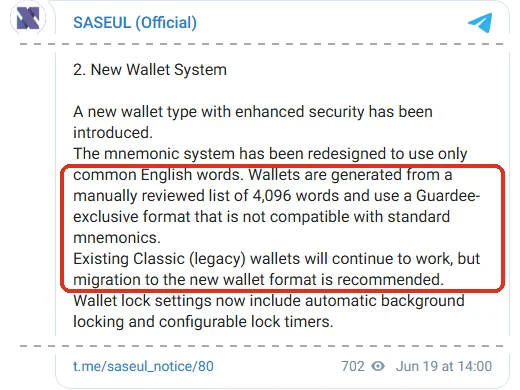
How many recovery words it shows, and the order of the setup screens, couldn't be checked directly. Just follow what the screen tells you.
You need to get the address from your phone to your computer. The address is safe for others to know, so this is an easy way.
- Open the receive screen in the wallet and copy the address
- Send it to yourself, by email or in a messaging app's chat with yourself (in Korea, KakaoTalk's "Chat with myself")
- Open that message on the computer and copy the address
Keep in mind that anyone who knows the address can see what went in and out of it. Never send your recovery phrase this way. The miner only takes the address. It has no box for a private key or recovery phrase.
Step 1. Install the driver
Download the driver for your card from the NVIDIA driver site and install it. When it's done, reboot (restart the computer).
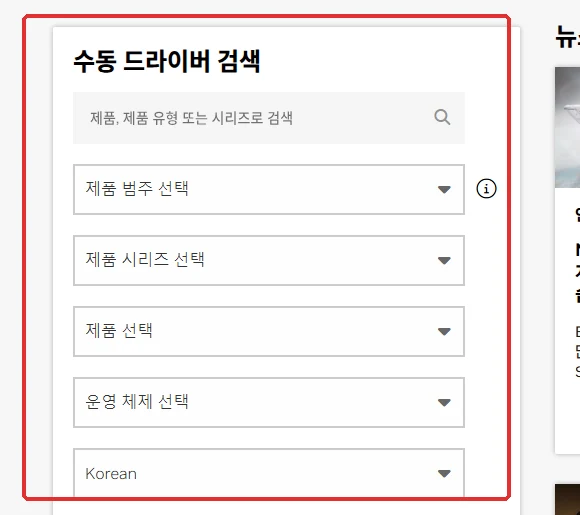
If a driver is already installed, update it to the latest. The higher the driver, the more CUDA versions you can install.
Step 2. Install CUDA
Pick the version that fits your card's generation. For the GTX 10 series, get version 12 from the CUDA Toolkit Archive. For other cards, the main CUDA Toolkit download page is fine.
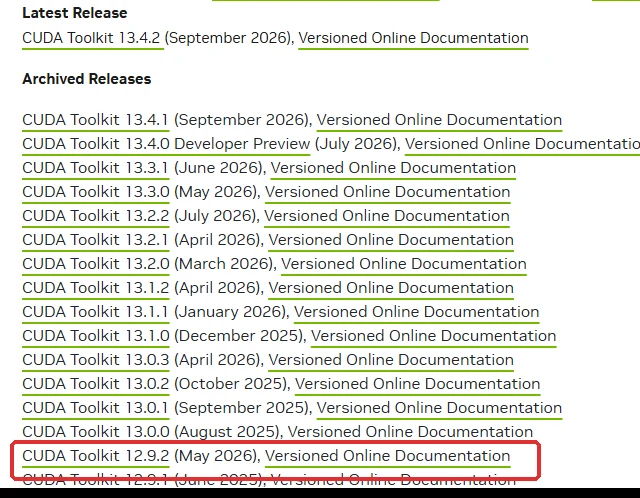
Check once more that the version you picked follows the driver rule. The version you install must not be higher than the CUDA Version in nvidia-smi. The miner checks whether it worked in step 4.
Step 3. Download the miner and unzip it
Get the Windows window version from the SASEUL Mining Pool download page. There's no installer. You just unzip it.
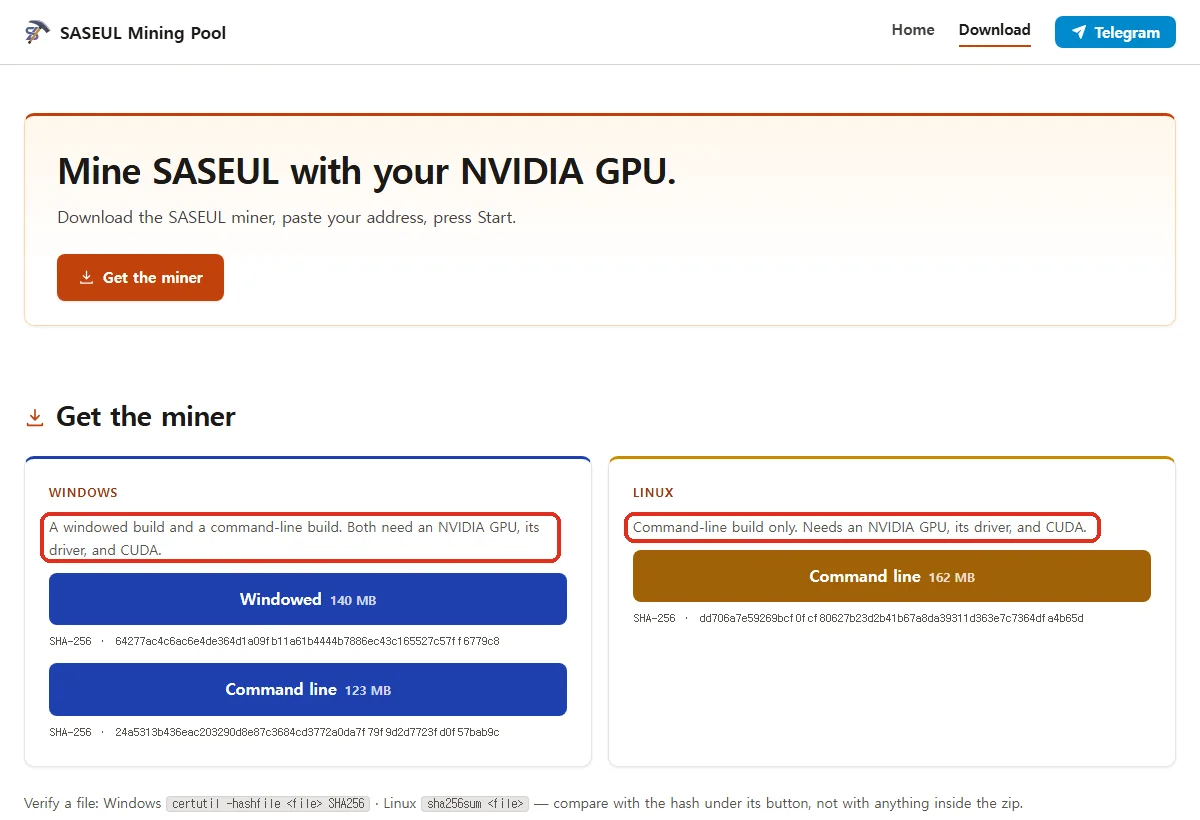
Unzip it into a folder with an English name, like C:\saseul. It's safer to avoid the desktop and OneDrive (a folder that syncs itself with online storage).
CheckIs the downloaded file still there, and does it run?
YesMove on.
- If your antivirus deleted it or you see "Unknown publisher," first check that it's the real file. Compare its fingerprint-like value (SHA-256), which is different for every file, with the value written on the site. How to compare is in the fold-out box just below.
- If that doesn't workMatching SHA-256 values only mean it's the same file the site uploaded. That's not a guarantee that it's safe. According to the pool's guide, antivirus programs flag mining programs as a whole. I couldn't confirm why your antivirus deleted it. Whether to restore the file and exclude the miner folder from scanning is your call.
- If that doesn't workIf the values differ, don't use that file. Download it again from the site.
Doing it in the black window (checking the file, the typed-command version, Linux)
Windows has a window version and a typed-command version. Linux has only the typed-command version. On Linux, after downloading, give it permission to run like this.
chmod +x miner
To check that it's the real file, type the following in the black window. The first line is for Windows, the second for Linux.
certutil -hashfile filename SHA256
sha256sum filename
Compare the result with the SHA-256 value under the download button. If even one character is different, don't use it.
Step 4. Ask the miner if anything is missing
Open the miner window and click the System tab (the check-up screen). It shows six lines of what mining needs. If something is missing, it's marked and a download link appears.
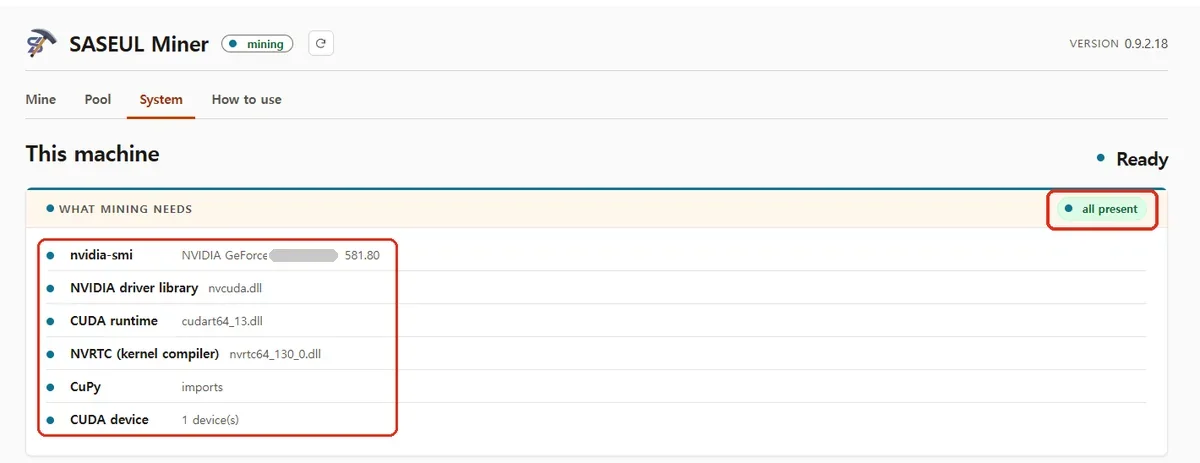
The first line shows the card name and the driver number. If the driver number is low for the CUDA version you installed, go back to step 1 and update the driver to the latest.
CheckDoes it say nothing is missing?
YesMove on.
- Download and install from the link shown on the missing line. Then check the System tab again.
- If that doesn't workIf you have a GTX 10 series card and installed CUDA 13, the card can't be found. Get version 12 from the CUDA Toolkit Archive and install it.
- If that doesn't workIt can say CUDA is missing even after you installed it. That happens when CUDA came along with some other program and isn't in the folder the miner looks in. Try installing CUDA again from NVIDIA's site.
- If that doesn't workUpdate the driver to the latest, reboot, and check again.
- If that doesn't workMove the miner folder to one with an English name, like
C:\saseul, and run it again. - If that doesn't workIf it still fails, go to "Where can I ask if it still doesn't work?"
Causes for each kind of error are in a table in the CUDA error post.
Checking in the black window
In the typed-command version, type the following. It shows the same six lines as the System tab in the window version.
miner.exe check
On Linux it's ./miner check. If it says CUDA is missing even after you installed it, miner check shows the folders it looked in. Check whether CUDA is in those folders.
Step 5. Enter your wallet address and start
Double-click miner.exe to open it. Paste your wallet address and click Start mining. You only enter the address the first time. After that it's saved.
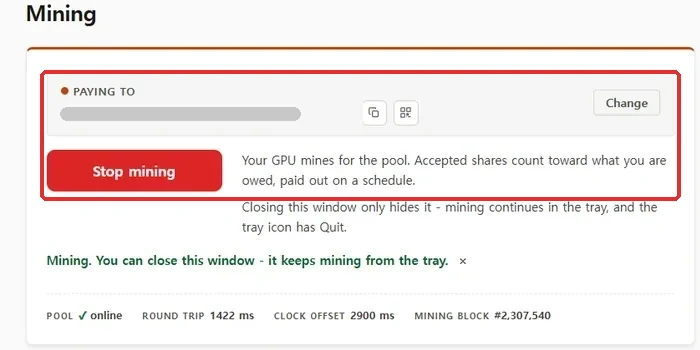
CheckDoes the miner open and show Mining?
YesMove on.
- If you downloaded the typed-command version, double-clicking does nothing. Check that you got the window version. The typed-command version runs in the black window (Command Prompt).
- If that doesn't workIf the window version won't open, install Microsoft WebView2 Runtime (a program the window version uses to show its screen). It's usually already on Windows 10 and 11.
- If that doesn't workIf it still won't open, go back to step 4 and check again for anything missing.
Starting in the black window
In the typed-command version, type this with your wallet address added.
miner.exe start YOUR_WALLET_ADDRESS
Step 6. Decide how much of the graphics card to use
At first it runs at 25% usage. That doesn't mean the card runs at a quarter of its strength. It runs flat out, then rests, over and over, so it's busy about one moment in four.
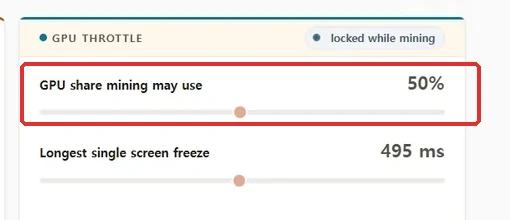
It often hands the card over to other work during the rests, so you can keep using the computer while it mines. In the one-month record, at 50% the power also kept swinging between a low value and a high value.
Change it by sliding the bar (slider) on the Mine tab (the mining screen). On a computer nobody uses, you can set it to 100%.
CheckDoes the screen or your game run without stutter while it mines?
YesLeave it as is.
- Lower the usage.
- If that doesn't workIf it still stutters, shorten how long it holds the card at a time. That's the second bar on the Mine tab. Lower is smoother, higher mines faster.
Changing it in the black window
In the typed-command version, change the usage with --gpu-percent. Change how long it holds the card at a time with --max-stall-ms.
What should you watch after you start mining?
Two things. Whether the work the pool accepted (ACCEPTED) keeps going up, and whether coins come in after a day.
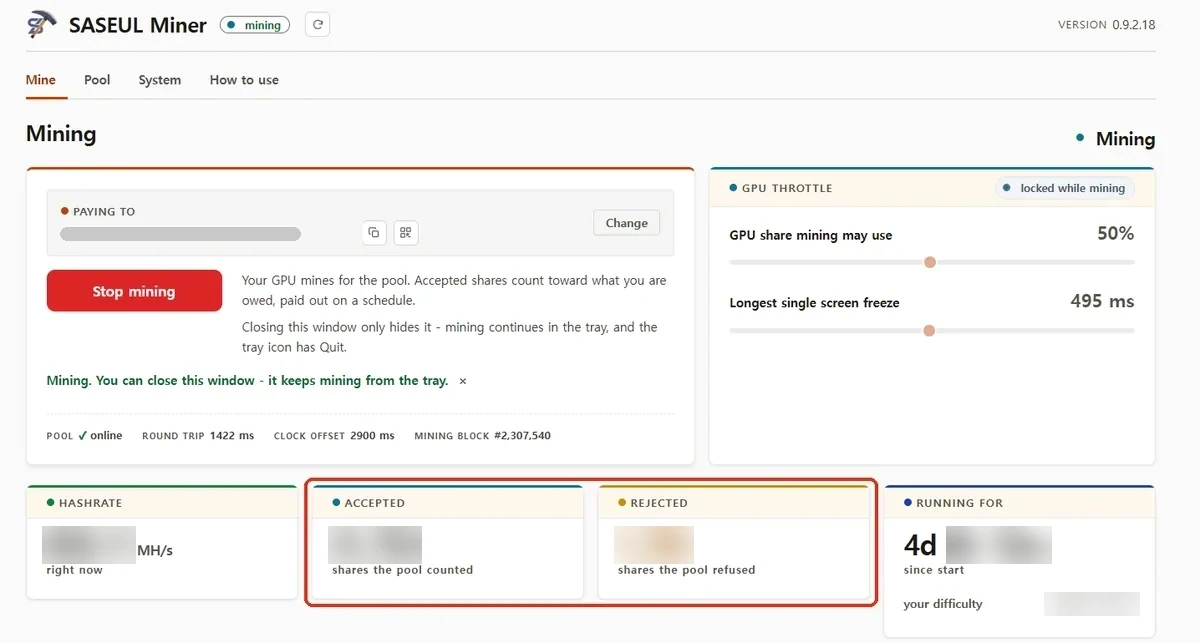
The roughly 860 MH/s in this record (the numbers on the screen are blurred) means it makes more than 800 million guesses a second.
CheckDoes the ACCEPTED number (work the pool accepted) keep going up?
YesIt's mining fine. You get coins for the work that's accepted.
- Check that it says online (connected) next to POOL at the bottom of the Mine tab. Also check that the pool site's front page opens.
- If that doesn't workCheck that the computer hasn't gone to sleep. Mining stops in sleep mode.
- If that doesn't workGo back to step 4 and check again for anything missing.
- If that doesn't workIf it still doesn't go up, go to "Where can I ask if it still doesn't work?"
REJECTED (work turned away) shows up a little at a time. In this record, over about 4 days, about 32,000 were accepted and about 1,700 were rejected (the numbers on the screen are blurred).
That's about 5%, or roughly one in twenty. Why they're rejected is unknown. My guess is the time it takes for answers to travel to the pool and back. Even so, coins still came in on this record.
CheckDo coins come in after a day?
YesYou can see what came in to your wallet address on the official records site.
- Coins are handed out once a day. If you haven't reached the minimum, it's added to the next time.
- If that doesn't workOn days when the pool doesn't find a new page of the record book, nothing may come in. In a 13-day record from one card, three days had nothing (one-month record).
- If that doesn't workIf it's been 0 for several days, check again that the wallet address you entered in the miner is right.
Why does it keep mining after I close the window?
Even with the window closed, it keeps mining from the group of small icons (the tray). Click the ^ shape next to the clock at the bottom right of the screen to see the hidden small icons.
To stop it, click Stop mining in the window. Or click that small icon and click Quit.
Stopping in the black window
In the typed-command version, type miner stop.
Can I mine on several computers?
Yes. Enter the same wallet address on every computer, and it all adds up in one address.
Can I mine on a laptop?
Unknown. There's no record of running it on a laptop. The pool's guide doesn't say anything about laptops either.
If Task Manager's Performance tab shows NVIDIA on a laptop, you can try installing it with the same steps. I couldn't find anything on how hot it gets over long runs.
How much comes in a day?
It depends on the card and on how the pool is doing, so it's hard to give one number. There is a record of one graphics card a few years old run at 50% usage (busy about half the time). Over the 13 days from September 2 to 14, it averaged 39 coins a day (one-month record).
Where can I ask if it still doesn't work?
Ask in the SASEUL Mining Pool Telegram chat room.
- SASEUL Mining Pool Telegram: t.me/saseulmine
- Send these with your question for a faster answer: your graphics card name, your driver and CUDA numbers, a picture of the System tab screen, and the screen showing the error
- When asking an AI, give it these four things too and you'll get an answer faster
- If you hit a problem that isn't covered here, please report it through the tip form. Once it's confirmed, it gets added here
What to send if you use the black window
Send the top line of nvidia-smi (driver and CUDA numbers) and the miner check result.
Sources
- Official SASEUL Telegram notice (three pools) · 2026-09-15
- Official SASEUL Telegram notice (Guardee revamp, new wallets use 4,096 words) · notice dated 2026-06-19, checked 2026-09-27
- Guardee front page, guardee.io · checked 2026-09-27
- SASEUL Mining Pool (saseulmine.com), setup steps and guide · checked 2026-09-27
- SASEUL Mining Pool downloads and FAQ · checked 2026-09-27
- SASEUL Mining Pool Telegram
- saseulpool.com · checked 2026-09-25
- rabbitminer.cc · checked 2026-09-25
- SASEUL explorer
- NVIDIA CUDA release notes (version 13, Maxwell, Pascal and Volta support removed, minimum driver per version) · checked 2026-09-27
- NVIDIA CUDA 12.8 release notes (SM_120 Blackwell support added) · checked 2026-09-27
- NVIDIA CUDA 12.9 Update 1 release notes (table of drivers bundled with each version) · checked 2026-09-27
- NVIDIA Minor Version Compatibility (programs that build calculating code don't run on older drivers) · checked 2026-09-27
- NVIDIA CUDA Driver API, Data types (CUDA_ERROR_UNSUPPORTED_PTX_VERSION) · checked 2026-09-27
- NVIDIA CUDA Toolkit Archive (older versions) · checked 2026-09-27
- NVIDIA CUDA GPU list (RTX 50 series = Compute Capability 12.0) · checked 2026-09-27
- NVIDIA driver downloads
- NVIDIA CUDA Toolkit downloads
All screenshots and mining numbers are for one card with a calculating speed of around 800 MH/s.