[SL Trading Walkthrough 2/5] How do you move SASEUL SL to Hyperliquid? Depositing through Lubics, step by step

How do you get SL onto Hyperliquid through Lubics?
Connect, send to the address, and wait for it to arrive
1 Connect Lubics
Connect wallet, sign in
2 Deposit address
Appears after the safety check
3 Send from Guardee
3,000 SL or more
4 Wait
Checking, then Done
5 Check balance
Hyperliquid Balances
This is post 2 of 5 in the "SL Trading Walkthrough" series. The previous post is ① Creating a MetaMask wallet.
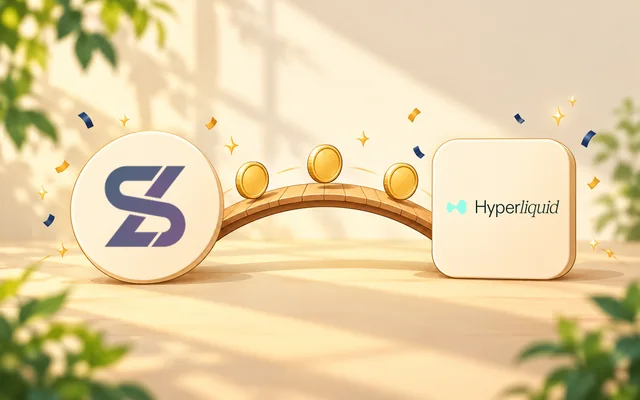
The way to move SL from the SASEUL ledger to Hyperliquid is Lubics. The order is simple. Connect your wallet on Lubics, send SL to the deposit address Lubics gives you, and wait. This guide is a record of the one time I did it myself. What Lubics is is covered in the earlier post. If SASEUL coin (SL) is new to you, you can read the SASEUL overview first.
What do you need before you start? Two wallets and at least 3,000 SL
- A PC with Chrome and a MetaMask wallet. If you don't have one yet, start with the MetaMask setup guide
- A SASEUL wallet that holds SL. I used a Guardee wallet. If Guardee is new to you, see the Guardee wallet post
- At least 3,000 SL. The Lubics screen says the minimum deposit is 2,000 SL and the fee is 1,000 SL. The fee comes out of what you send. For example, if you send 3,000 SL, 1,000 goes to the fee and 2,000 SL arrives on Hyperliquid
- Time to wait. For me it was about 15 minutes
Is the 1,000 SL fee the same if you send more? Yes, it's 1,000 SL per transfer
Lubics's "Fees and limits" page says the fee is "1,000 SL per deposit or withdrawal." It isn't a percentage of the amount. Like a delivery charge, it's a fixed price each time you send.
| Amount sent | Fee | Arrives on Hyperliquid |
|---|---|---|
| 3,000 SL | 1,000 SL | 2,000 SL |
| 10,000 SL | 1,000 SL | 9,000 SL |
| 1,000,000 SL | 1,000 SL | 999,000 SL |
So if you split a deposit into several transfers, the fee comes out several times. The same page also says it "may be adjusted depending on the SL price," so check the numbers on the Lubics screen right before you send. Separate from this 1,000 SL, the SASEUL ledger fee for sending from the Guardee wallet comes out of your own wallet.
How do you connect to Lubics? Choose MetaMask under "Connect"
- Click app.lubics.com or type it into the Chrome address bar yourself. Don't get there through a search result link
- Check that "DEPOSIT to Hyperliquid" is lit up in orange. That tab is the one that sends to Hyperliquid
- In the "Connect to deposit" box below, press the orange "Connect" button. The "CONNECT" at the top right is the same button

- In the "Connect a wallet" window, press "MetaMask in this browser." That means the MetaMask installed in the Chrome you're using right now

- When the MetaMask window opens, check that the address says "app.lubics.com" and that the account (such as "Account 1") is the one you want to use
- Press the black connect button at the bottom (the Korean MetaMask screen shows "연결"). Be careful not to mix it up with the cancel button next to it

- Next, a sign-in request window appears. Check that the message is "Sign in to Lubics." and the requester is "app.lubics.com." The expected-changes line says there are no changes
- If it all matches, press the black confirm button. This is a signature that shows you own this wallet, and it isn't a step where money leaves

What about the safety checklist? Tick all three boxes and press "Acknowledge"
Once you're connected, "Safety checklist before you deposit" appears. It has three boxes, each with a bold heading and a line of small print. Read them one at a time and tick the square in front of each.
- "Minimum deposit is 2,000 SL." The small print means a deposit that's below the minimum, or doesn't exceed the 1,000 SL fee, is neither exchanged nor returned. If you send 1,999 SL, none of it comes back. So send at least 2,000 SL, and in practice start around 3,000 SL so something is left after the fee
- "Your deposit address is ONLY for SL on SASEUL." The small print says anything else you send won't be exchanged. Send only SL from the SASEUL ledger to this address. Don't send SL that's already on Hyperliquid, or any other coin, to it
- "SL goes to (the start and end of your wallet address)." The small print says your Hyperliquid account is the wallet you connected. It means the exchanged SL goes to the MetaMask wallet you just connected to Lubics. Check that the start and end of the address in the heading match your address at the top of the MetaMask screen. You'll need to connect to Hyperliquid with this same wallet later to see your SL
When all three are ticked, the gray "Acknowledge" button becomes clickable. Press it.

Where does the deposit address appear? Under "Your SL deposit address," with a QR code
When you press "Acknowledge," the "Your SL deposit address" box opens. It shows a long address and a QR code. The note below says you can send SL from any SASEUL wallet or exchange, and you receive the same amount, minus the fee, in your Hyperliquid wallet.

How do you send from a Guardee wallet? Paste the address, start with the first and last 4 characters, then check the whole address
I don't have a screenshot of the Guardee wallet screens, so I can only describe it in words. Button names can differ by app version, so go by your own screen rather than mine for the exact wording.
- Copy the deposit address from the Lubics screen. If there's a copy button next to it, press that
- Open the Guardee wallet on your phone and go to the menu for sending SL
- Paste the address you just copied into the recipient address box
- Match the address on the Lubics screen against the address on the Guardee screen. Start with the first 4 and last 4 characters, then check the whole address. If even one differs, don't send
- For the amount, enter 3,000 SL or more. If you send only 2,000, the 1,000 fee comes out and only 1,000 is left
- Check once more, then press send. SL you've sent on the SASEUL ledger can't be taken back
I sent in this same order, and before sending I compared the address on the two screens, starting with the first and last 4 characters and then the whole thing.
What do you see after sending? "Checking" changes to "Done"
- After sending from Guardee, go back to the Lubics screen. A "Deposit" row appears in "History" below
- At first the status shows as an orange "Checking." This screen refreshes on its own. Lubics's guide says you can close the page while you wait
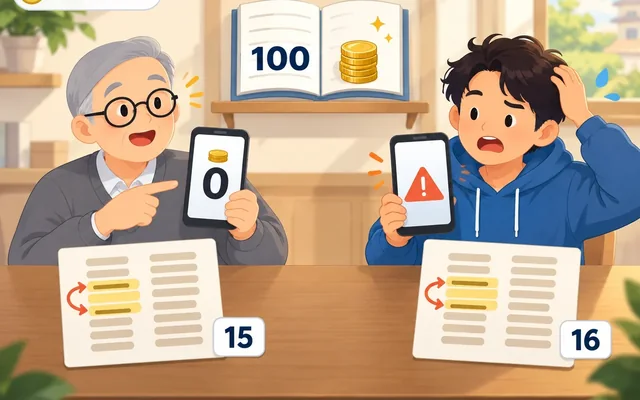
- For me, it changed to "Done" about 15 minutes after I sent
Is 15 minutes a set time? No, it's just how long it took me once
The Lubics FAQ says two things. Once the SL you sent is recorded in a main block on the SASEUL ledger, a row usually shows up in History within about a minute. After that, Lubics checks the transaction, and it's finished once the SL lands in your Hyperliquid account. It gives no figure for how many minutes the whole thing takes. It only says that a halt, a review, or a slow network can make it take longer.
So 15 minutes is a record of my own case. It could be shorter or longer depending on how long it takes to be recorded on the SASEUL ledger and what's going on at Lubics that day. The "about a minute" in the earlier post is how long it takes for the row to appear in History, not how long it takes to finish.


How do you check on Hyperliquid? Connect with the same MetaMask wallet
- Click app.hyperliquid.xyz or type it into the Chrome address bar yourself
- Press "Connect" at the top right
- In the "Connect" window below, press "MetaMask." Don't press "Log in with Email" above it. A wallet made through email has a different address from the MetaMask wallet you connected to Lubics, so you won't see your SL

- In the MetaMask window, check that it says "app.hyperliquid.xyz" and that the account is the same one you connected to Lubics (such as "Account 1")
- Press the black connect button

- Once connected, an "SL" row appears in the "Balances" box at the bottom of the screen. If you see that row, the deposit is done
- If you don't see the SL row, untick the box in front of "Hide Small Balances." While it's ticked, assets with small balances are hidden

What I saw here was the amount I sent minus the 1,000 SL fee. The same screen also had a teal "Enable Trading" button, and I didn't press it this time. I'll cover this button and the terms-agreement and signature windows in order in post ③, connecting your wallet to Hyperliquid. Here, you only need to check that SL shows up in Balances.
What if you get stuck?
I sent it, but I don't see a row in History. Wait a bit longer and recheck the address
Lubics says it shows the deposit on screen once it's recorded on the SASEUL ledger. If you still don't see it after a few minutes, refresh, and match the address you sent to against Lubics's deposit address again, starting with the first and last 4 characters and then the whole address. The Lubics FAQ says that if it still isn't there after 30 minutes, you should send the transaction hash (the record number of your transfer; Lubics's glossary says it appears in your wallet and in History) to the official channel. Don't send more to the same address. Ask through Lubics's official Telegram (t.me/lubics_official). Don't trust anyone who contacts you first.
"Checking" is taking a long time. There's no set finishing time
Lubics's guide gives no finishing time, and says a review or a slow network can make it take longer. For me it was about 15 minutes. If it stays like that for a long while, take your transaction hash to the official channel and ask.
I can't see my SL on Hyperliquid. First check that the connected wallet is the same one
The most common reason is that it went into a different wallet. If you're logged in through email, disconnect and connect again with MetaMask. I also had an email-login wallet left over at first, so I disconnected and reconnected. After that, untick the "Hide Small Balances" box.
I sent less than 2,000 SL
According to Lubics's safety-check text, a deposit that doesn't exceed the minimum is neither exchanged nor returned. Be sure to check the numbers before you send. If you've already sent, you can ask in Lubics's official Telegram, but there's no promise you'll get it back.
So what should you do? Try it once with a small amount
- Install MetaMask in Chrome and get at least 3,000 SL ready
- On app.lubics.com, connect your wallet and sign. Tick the three safety boxes and press "Acknowledge"
- Copy the deposit address and send from the Guardee wallet. Don't skip checking the address: first and last 4 characters first, then the whole thing
- Wait on Lubics History until it says "Done." For me it was about 15 minutes
- Connect to app.hyperliquid.xyz with the same MetaMask account and check that SL is in "Balances"
Next, ③ covers connecting to Hyperliquid and adding USDC, ④ covers buying and selling SL, and ⑤ covers getting it back to the SASEUL ledger. What Hyperliquid is is covered in the intro post.
Sources
- Lubics · deposit screen · minimum deposit 2,000 SL, fee 1,000 SL, pre-deposit safety-check text, deposit address, History statuses (Checking, Done); checked by trying it myself, 2026-10-27
- Lubics · Fees and limits · fee 1,000 SL per deposit or withdrawal (may be adjusted depending on the SL price), minimum deposit 2,000 SL, the network fee on my side is paid from my wallet; checked 2026-10-27
- Lubics · FAQ · usually shows in History within a minute after a main-block record, send the transaction hash to the official channel if it isn't there after 30 minutes, a halt, review or slow network can take longer; checked 2026-10-27
- Lubics · How to deposit · Acknowledge after the safety checks, you can close the page while waiting; checked 2026-10-27
- Hyperliquid · trading screen · Connect window, MetaMask connection, Balances and Hide Small Balances, Enable Trading button; checked by trying it myself, 2026-10-27
- SASEUL official Telegram notice "SL Now Available on Hyperliquid" · SL trades as a spot asset on Hyperliquid, Lubics address guidance, run separately from the SASEUL team; original text checked 2026-10-27
I hold SL. I checked the Lubics and Hyperliquid screens by trying them myself on October 27, 2026. I opened the notice's original text again the same day to check it.