How do you make a SASEUL Guardee wallet? Two buttons, 16 words on paper, and copying your address

How do you make a SASEUL Guardee wallet?
Two clicks, 16 words on paper, only the address goes out
Click start on the first screen
Create new wallet
Read the three notes, then click
Write 16 words
On paper, with numbers
Copy address
The miner only gets the address
Open guardee.io, click the start button ("시작하기" on the Korean screen), then "Create new wallet," and the wallet exists. Right after that, 16 English words appear. Write them on paper, copy your address from the wallet screen, and you're done.
The surprising part is that the wallet isn't stored on a company server. It lives only on that device. So if you lose the 16 words, even the company that made it can't bring it back. There's one thing to do: words on paper, only the address goes out.
Guardee is SASEUL's official wallet app for receiving and sending SASEUL coin (SL). There's a phone app too. It's on the App Store and Google Play as version 3.0.1 (checked October 9, 2026). This post shows how to make one in a web browser on a computer.
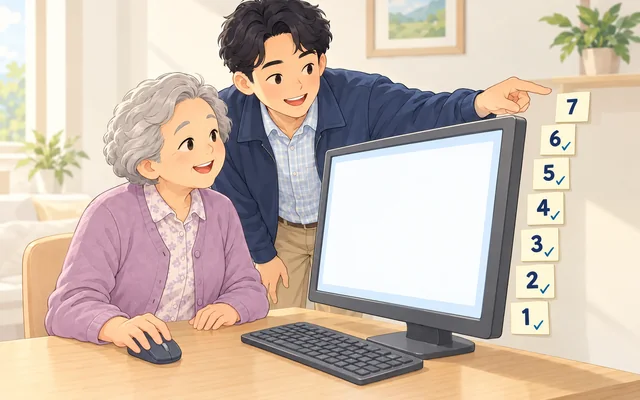
1. Click the start button on the first screen to go to wallet creation
Type guardee.io into the browser's address bar yourself. It's safer not to go in through search ads or links someone sent you.
- Open
guardee.ioin your browser - On the "환영합니다!" (Welcome!) screen, click "시작하기" (Get started)

The language button at the top right ("한국어" on the Korean screen) changes the screen language.
2. Read the three notes, then click Create new wallet
The next screen is titled "새 지갑을 만듭니다" (Create a new wallet). Before clicking, it's worth reading the three notes.
- Read the three lines: "stored safely on this device," "the seed phrase is the wallet," and "never tell anyone"
- Click "새 지갑 만들기" (Create new wallet) below

The screen says the wallet isn't uploaded to a server and is encrypted and stored only on this device. It's like keeping your house key in your own pocket instead of leaving it with the building office.
I couldn't confirm whether there are more screens between clicking the button and the words appearing. If a box asks you to set an app lock password, follow the on-screen instructions.
3. Write the 16 words that appear right away on paper, with numbers
When you make a new wallet, 16 recovery words (a set of English words that brings your wallet back) appear. The screen calls them a "seed phrase." These 16 words are the real key to the wallet.
- Have paper and a pen ready
- Write them in order, numbered 1 to 16
- Check the spelling against the screen, one letter at a time
- Write "16 in total" at the bottom
This word system was introduced in an official SASEUL notice on June 19, 2026. It says the words come from a list of 4,096 English words reviewed by people, and that the format is Guardee-only, so it doesn't work with other wallet apps.

The number 16 isn't in the notice. It's how many words appeared when this blog's Windows install post made a wallet on October 3, 2026, and the screen notes above also say 16.
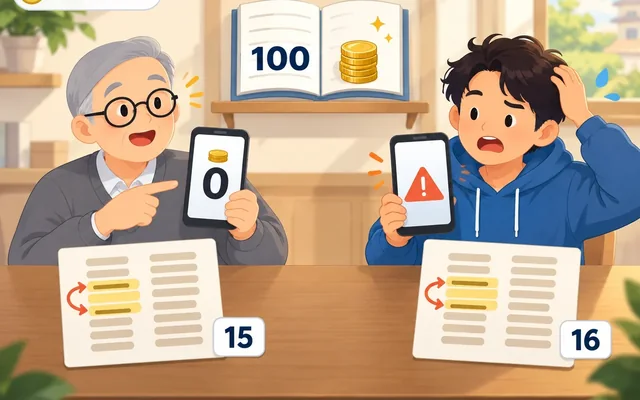
Keep the 16 words on two sheets of paper, not in photos or chat apps
Writing them by hand and keeping two copies in different places is the safest plain choice. If one sheet is lost to fire or water, you still have the other.
- Don't take a photo and keep it on your phone
- Don't keep them in a "send to myself" chat, a notes app, or the cloud either. If your phone or account is hacked, they leak with it
- Anyone who asks for the words is a scammer, even if they say they're customer support. The screen notes say so too
The App Store description says that if you lose the wallet, "third parties, including the developer, cannot help with recovery in any way." The same description says ArtiFriends doesn't store your recovery words and won't ask for them.
You'll feel safer if you try restoring once using only the paper before you put coins in. If the same address shows up, your paper is right.
4. Copy the address from the wallet screen, and it's fine if others know it
The long string of letters and numbers at the bottom of the blue card on the wallet screen is your wallet address (something like an account number). Click the copy icon next to it and "복사 완료" (Copied) appears at the top of the screen.
- Find the address line below the blue card
- Click the copy icon next to it
- Paste it into the mining program, or send it to whoever is sending you coins

An address is fine to share, like a bank account number. To receive coins, you actually have to share it. Just know that anyone can see the balance and history of an address on the SASEUL explorer.
The mining program only gets this address too. The mining pool saseulmine.com's guide also just says to paste your address and start. Where to put it is step 7 of the Windows install post.
To use it on another computer or phone, you restore it with the 16 words
That's because the wallet only lives on the device where you made it. On a new phone, you don't install Guardee and sign in like an account.
On another device, click "복구 키가 있으신가요?" (Have a recovery key?) on the first screen and enter the 16 words. If one word or one position is off, your original wallet won't open. How to do it, and what to check when you're stuck, is in the Guardee wallet restore post.
My guess is that clearing the browser's data or changing computers could also make the wallet on that device disappear. I haven't tested it myself. That's another reason the paper matters more.
So what should you do? Words on paper, only the address goes out
Just remember this first: don't keep the 16 words in photos, chat apps, or notes apps. If you're making one for the first time, this is the order.
- Type
guardee.iointo the address bar yourself and click the start button - Read the three notes and click "Create new wallet"
- Write the 16 words with numbers on two sheets of paper and keep them in different places
- Copy the address from the wallet screen and paste it into the mining program
- Before any coins come in, restore once from the paper and check it's the same address
To start mining with this address, the next step is the Windows install post. What kind of coin SASEUL is, is on SASEUL basics. If you've seen a fake wallet site or someone asking for your words, please let me know on the tip page.
Sources
- Guardee web wallet (first screen "환영합니다! · 시작하기 · 복구 키가 있으신가요?" / Welcome! · Get started · Have a recovery key?) · checked 2026-10-09. The "Create a new wallet" screen and the wallet screen are from the 2026-10-03 install log
- SASEUL official Telegram notice #80 · Guardee overhaul (2. New Wallet System) · 2026-06-19, main post
- App Store · Guardee (version 3.0.1, usage notes) · checked 2026-10-09
- Google Play · Guardee (developer ArtiFriends, same usage notes) · checked 2026-10-09
- saseulmine.com download page ("paste your address, press Start," the note about pasting your address into the mining program) · checked 2026-10-09
This is a how-to for making a wallet, not investment advice. I hold SL. I opened and checked the guardee.io first screen, notice #80, both store pages, and the pool site guide myself on October 9, 2026. The 16 words and the wallet screen are from the October 3, 2026 install log.