Does Mining SASEUL at Home in a Pool Wear Out Your Graphics Card? What Wears and How to Reduce It
Does pool mining at home wear out your graphics card?
Not because of the pool. Long runs wear the fans and collect dust, and lower temps cut that
Pool or solo
The card does the same calculations. Only the reward split differs
What wears with long runs
Fans, thermal materials, dust buildup
How to reduce it
Lower usage and power, fan settings, cleaning, watching temps
Whether you join a pool (a group that mines together and splits the reward) or mine solo, the graphics card does the same calculations. A pool only changes how the reward you earn gets split (what a mining pool is).
That said, some parts do wear if you leave it running for a long time. The fans, the materials that move heat away, and the dust that builds up. Keep temperatures low and that strain drops a lot.
What wears out is the fans, thermal materials and dust, more than the chip
The graphics chip itself is built to run reliably up to a set maximum temperature. That's what NVIDIA's support article says. When it hits that temperature, the card slows itself down, and if it keeps climbing, the computer shuts down to protect the card.
| Part | After long runs | Source |
|---|---|---|
| Fans | If they stop or spin on and off, they may need replacing | PCWorld (2026-04-10) |
| Thermal paste (the paste that carries heat between the chip and the heatsink) | When it dries out, heat doesn't escape well | PCWorld |
| Thermal pads (heat-carrying pads on the memory) | They dry out with age and the memory runs hot | PCWorld |
| Dust | Builds up fast on fans and heatsinks and weakens cooling | PCWorld |
| Graphics chip | Runs reliably within its maximum temperature | NVIDIA support |
How do pool, solo and gaming differ? Temperature decides how much wear you get
Mining in a pool and mining solo ask the same work of the card. The difference is how long and how hot you run it.
In a study of the graphics cards in the Titan supercomputer, followed for six years by Oak Ridge National Laboratory in the U.S. (announced November 2020), lifespan depended heavily on how well the heat was carried away.
| How it's used | Strain on the card | What was confirmed |
|---|---|---|
| Pool mining, solo mining | Long, steady work | The same calculation either way; only how the reward is received differs |
| Gaming | On and off, intensity keeps changing | - |
That on-and-off swings in temperature may also be a strain is my guess.
Four ways to reduce it, and the first is running it less hard
- Turn down the intensity. The SASEUL mining program has a usage setting (how much of the card it's allowed to use). On NVIDIA cards you can also lower the power limit (the maximum power the card can draw).
- Make the fan curve (the setting that sets fan speed by temperature) speed up a little earlier. PCWorld wrote that this reduces sudden temperature spikes.
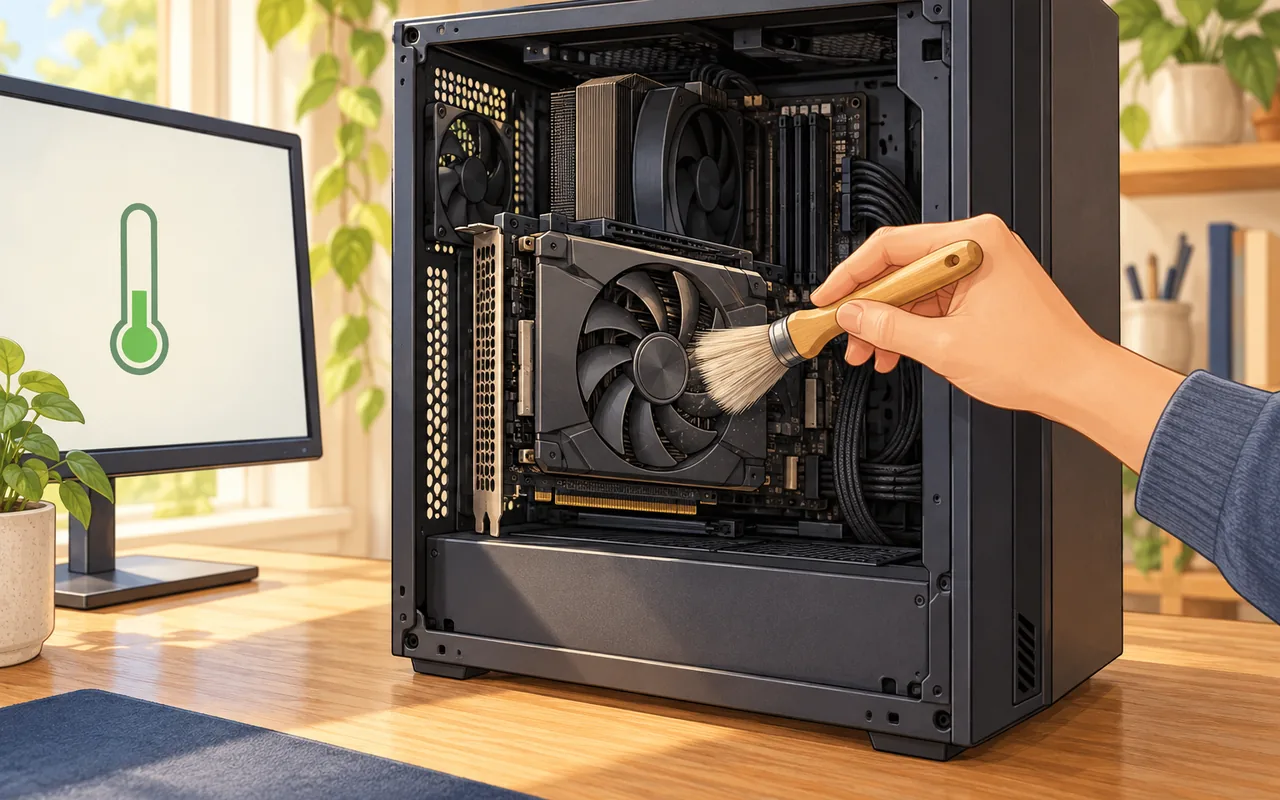
- Clean out the dust. Turn off the power, pull the plug, then clean the fans and heatsink with compressed air or a soft brush. Check the case dust filters too.
- Watch the temperature. Open Task Manager with CtrlShiftEsc, go to the "Performance" tab and click GPU to see the temperature. It only shows for a separate, plug-in graphics card.
Checking temperature and power limit in the black window (Command Prompt)
On NVIDIA cards, the nvidia-smi command shows temperature, power and fan speed every 5 seconds.
nvidia-smi --query-gpu=temperature.gpu,power.draw,fan.speed --format=csv -l 5
To see the lowest and highest power limit you can set on your card:
nvidia-smi -q -d POWER
The command to change the power limit is nvidia-smi -pl <watts>. The value has to be between the lowest and highest values you saw above, and you need administrator rights (NVIDIA nvidia-smi documentation).
The 50% usage setting isn't half strength. It runs flat out and rests briefly, over and over
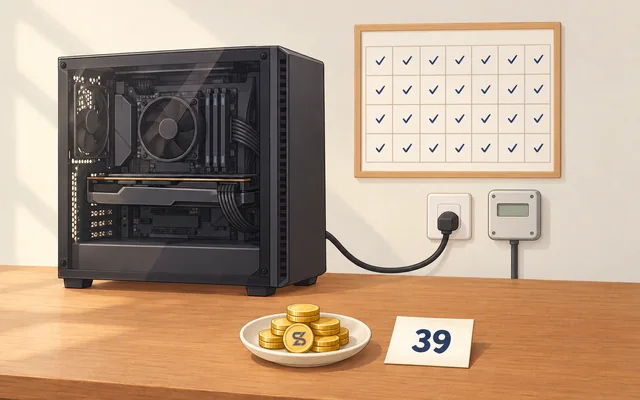
The 28-day record has the temperature at 50% usage. It was 44-50°C before mining and 55-60°C while mining.
The 50% setting doesn't run at half strength. It runs flat out and rests very briefly, over and over (same record).
So what should I do? If your card has room to breathe, it's worth a try
Worth trying if
- It's a desktop, with airflow in and out of the case front and back.
- You can check the temperature while mining in Task Manager once a day.
- You can start at low usage and raise it while watching the temperature.
Better to skip if
- It's a laptop. There's little room for heat to escape.
- The room is dusty, or the card is pressed tight against a wall or inside a cabinet.
- The fan makes a grinding noise, or it's an old card whose fan barely spins.
- The temperature stays high even after cleaning. In that case, before replacing the thermal materials, it'd be good to check the card maker's warranty terms first.
Whether your card can do it is in my setup post, and the basics about SASEUL are in SASEUL info.
Sources
- NVIDIA Support · NVIDIA GPU maximum operating temperature and overheating (runs reliably up to the maximum temperature, slows down and shuts off beyond it) · original checked 2026-10-16
- PCWorld · GPU running hot? How to diagnose and fix it yourself (Friedrich Stiemer, dust, fans, thermal paste, pads, fan curve) · 2026-04-10, original checked 2026-10-16
- Oak Ridge National Laboratory · GPU Lifetimes on Titan Supercomputer: Survival Analysis and Reliability (18,688 graphics cards, lifespan depends on heat removal) · 2020-11, original checked 2026-10-16
- NVIDIA · nvidia-smi documentation (--power-limit, between the minimum and maximum values, administrator rights) · original checked 2026-10-16
- Windows Blogs · Announcing Windows 10 Insider Preview Build 18963 (Task Manager GPU temperature, separate cards only, WDDM version 2.4 or later) · 2019-08-16, original checked 2026-10-16
- Temperature and power swings are from the 28-day record
I hold SL. I checked the parts and temperature details in the NVIDIA documents, PCWorld, Oak Ridge National Laboratory and the Microsoft announcement, which I opened myself on October 16, 2026, and the temperatures in the mining records already on this blog.