Can I keep using my PC while mining SASEUL? Start at 25% and lower the freeze limit if the screen stutters
Can I keep using my PC while mining SASEUL?
Start at the default 25%, and lower two sliders if it stutters
1 Default
Uses 25% of the card and yields often
2 If it stutters
Lower the freeze-limit slider
3 Still slow
Lower the GPU share slider
4 A PC you don't use
100% is fine
Yes, according to the pool site. The SASEUL mining program starts out using only 25% of the graphics card and yields often, so the pool site says you can keep using your PC while it mines (pool site Download guide, checked 2026-11-04). If the screen stutters, lower two sliders.
This post covers only what the two sliders change. The setup steps are in the Windows install post, and what SASEUL is can be found on the SASEUL basics page.
The GPU share slider sets how much of the card the miner uses
GPU share is the setting that decides what percentage of the graphics card mining may use. According to the pool site guide, the default is 25%. In the windowed version, you change it with a slider on the Mine tab.
While mining, this slider is locked. Press "Stop mining", move it, then press "Start mining" again (based on the screens in the install post).

Raising it speeds up calculation, and the card is held busy for longer
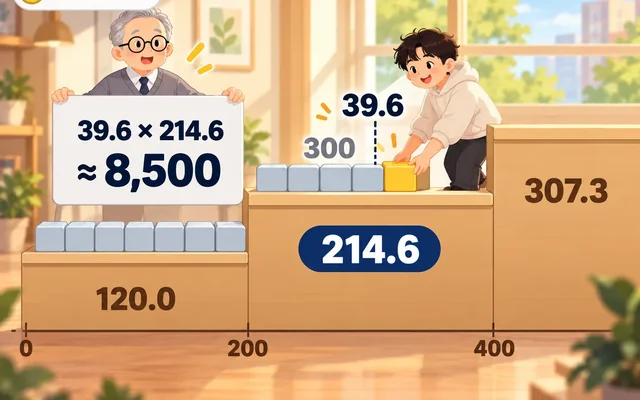
In the records of one graphics card running the mining program, going from 25% to 50% GPU share raised the daily average hash rate (how many calculations per second) from about 230 to about 840 MH/s, more than 3 times (summary of records from 2026-08-18 to 10-09). The two periods don't share the same dates and driver, so the exact multiple isn't precise.
The 50% record has a line like this: "stall 142ms typical / 265ms worst / 495ms max". The pool site describes the freeze limit (max stall) as "the longest the card can be held in one go". That the numbers in this line are that time is my guess. In this example line, even the longest was under half a second.
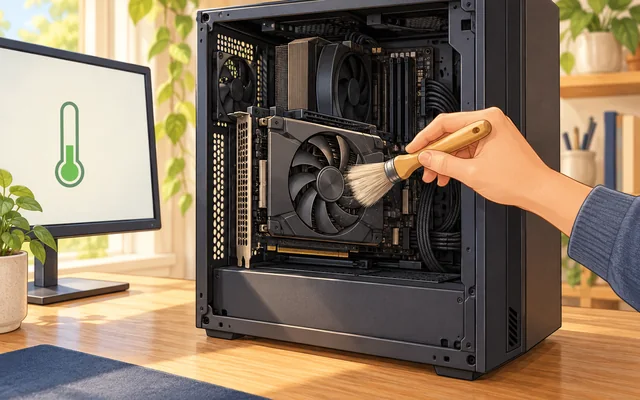
The higher the GPU share, the hotter the card gets. There is also an explanation that a 50% setting doesn't run at half power, it runs flat out and then rests very briefly, over and over (see the wear post).
If the screen stutters, lower the freeze-limit slider first
The windowed version has one more slider: "Longest single screen freeze". The pool site calls it the second control and says lower is smoother and higher is faster.
So the order goes like this. If video or window movement stutters, lower this slider first. The screen freezes less, and mining gets a little slower. If that's still annoying, lower the GPU share slider.
The command-line version uses different names. GPU share is --gpu-percent, and the freeze limit is --max-stall-ms. If you put them in a file (config.json), the miner re-reads it even while mining.
How to change the values in the command-line version
According to the pool site guide, to change it just once, add it to the end of the start command.
miner start <my address> --gpu-percent 25
To keep it, write a "gpu_percent" value in config.json next to the miner. If you give the same value on the command line too, the command-line value wins for that run.
On a PC you don't use, you can raise it to 100%
The pool site says to run at 100% on a dedicated computer (dedicated rig). My guess is that this is because nobody is using that PC, so stutter doesn't matter. Still, the higher the GPU share, the hotter the card. In the same 28-day record at 50%, the temperature was 44 to 50 degrees before mining and 55 to 60 degrees while mining (see the one-month record). I have no record of measuring 100%.
So what should I do? Start at 25% and raise it only when you need to
- At first, leave it at 25% and use your PC as usual
- If the screen stutters, lower the "Longest single screen freeze" slider (pause mining to move it)
- If you have headroom, raise the GPU share a little at a time. When you raise it, check the card temperature once, as in the wear post
- Consider 100% once the PC is dedicated to mining. Estimate the electricity cost first with the electricity cost calculation
Sources
- SASEUL Mining Pool · Download (default 25%, yields often, 100% guidance, freeze-limit explanation, command options) · original checked 2026-11-04
- Windows install post (slider names "GPU share" and "Longest single screen freeze" in the windowed version, locked while mining) · this blog, 2026-10-04
- Records of one graphics card running the mining program (2026-08-18 to 10-09): daily hash rate at GPU share 25% and 50%, the stall line · summarized 2026-10-09
- One-month record (temperature at GPU share 50%) · this blog, 2026-09-16
This is a guide to settings, not an invitation to invest. I hold SL. I read the 25% default and the slider descriptions myself on the pool site's Download page on November 4, 2026, and took the hash rate and stall numbers from the summary of the mining program's records.